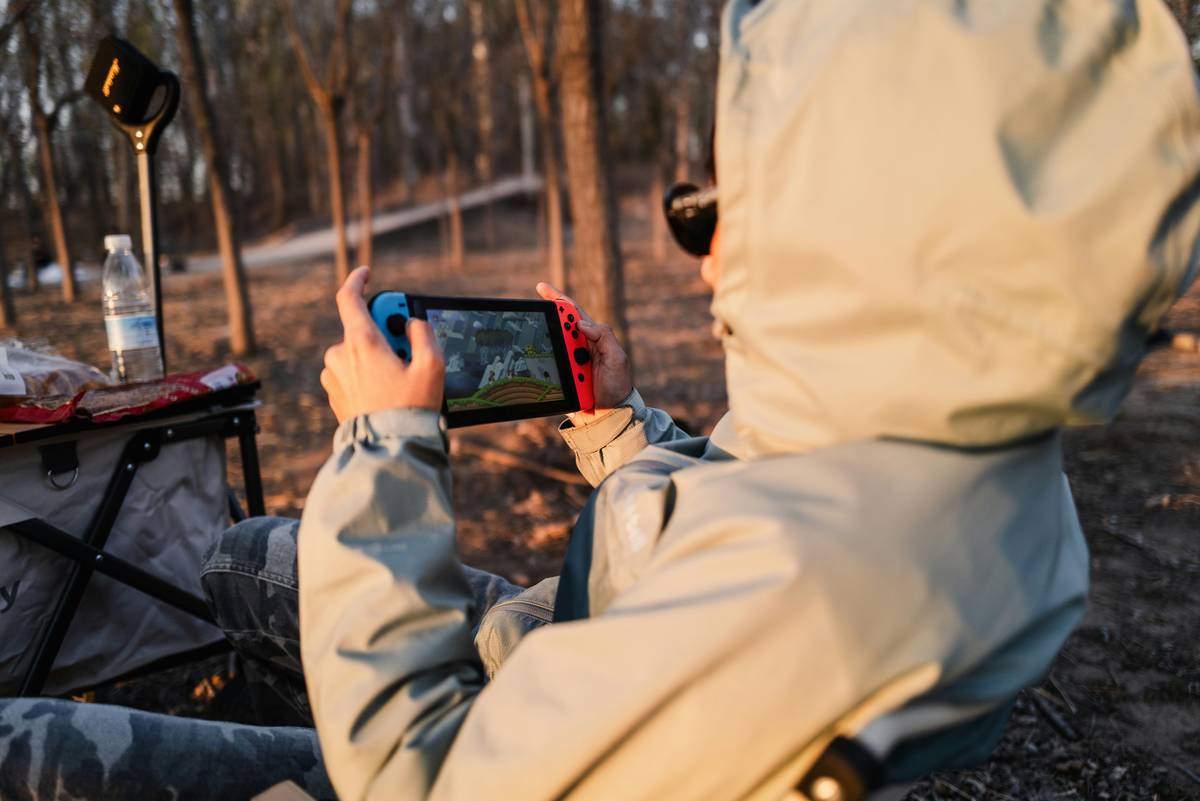
If you’ve ever stared at your gaming tablet and noticed ghostly remnants of HUD elements or permanently etched health bars long after closing your game, you’ve met the dreaded tablet screen burn-in. Unlike temporary image retention (which fades), true burn-in is permanent—and it’s shockingly common among intense mobile gamers. In this guide, we’ll unpack why gaming tablets are especially vulnerable, how to spot early warning signs, and—most importantly—seven actionable steps to protect your screen for years to come.
Table of Contents
- Why Tablet Screen Burn-in Ruins Your Gaming Experience
- Step-by-Step Prevention Plan for Gamers
- 5 Essential Best Practices for Long-Term Protection
- Real Cases: How Burn-in Manifests in Popular Tablets
- Frequently Asked Questions
Key Takeaways
- Tablet screen burn-in is irreversible pixel degradation caused by static elements displayed too long at high brightness.
- Gaming interfaces—with fixed status bars, health meters, and maps—are prime culprits.
- Lowering brightness, enabling auto-brightness, and using dynamic wallpapers drastically reduce risk.
- OLED displays are more susceptible than LCDs due to organic pixel chemistry.
- Early detection through screen tests can help mitigate worsening before it’s too late.
Why Tablet Screen Burn-in Ruins Your Gaming Experience
After marathon sessions of Genshin Impact on my Samsung Galaxy Tab S9+, I noticed faint outlines of the mini-map and stamina bar lingering even on my home screen. At first, I thought it was just fatigue—but within weeks, those shadows hardened into a permanent scar. That’s when I realized: I’d fallen victim to tablet screen burn-in.
Unlike older LCDs, most premium gaming tablets now use OLED panels for their deep blacks and vivid colors. But OLED pixels emit their own light and degrade over time—especially when displaying static content at high brightness for extended periods. According to a comprehensive study by Rtings, OLED screens can show visible burn-in after as little as 4,000–5,000 hours of mixed usage if static elements dominate.
Step-by-Step Prevention Plan for Gamers
Enable Auto-Brightness and Dark Mode
Your tablet’s ambient light sensor adjusts screen output based on surroundings. Keep auto-brightness on to avoid unnecessarily cranking up intensity in dim rooms—a major burn-in accelerator.
Vary Your Wallpaper and Interface Layout
Use animated or frequently changing wallpapers. In games that allow UI customization (like PUBG Mobile), move HUD elements periodically so no single pixel zone bears constant stress.
Set a Shorter Sleep Timer
Reduce auto-lock time to 30–60 seconds. The faster your screen sleeps during idle moments, the less chance static images have to “burn.”
5 Essential Best Practices for Long-Term Protection
- Avoid max brightness during gaming: Stay under 75% unless absolutely necessary.
- Use screen timeout tools: Apps like “OLED Tools” can run pixel-shifting routines overnight.
- Don’t leave apps open with static screens: Exit out fully—don’t just minimize.
- Play varied content: Mix gaming with video streaming or reading to rotate pixel usage.
- Run monthly burn-in tests: Display full-white, full-red, and full-blue screens to spot uneven aging early.
And here’s a terrible tip I’ve heard far too often: “Just cover the burned area with a black sticker.” Don’t do this—it traps heat, accelerates degradation, and voids warranties. Seriously, skip the DIY hacks.
Real Cases: How Burn-in Manifests in Popular Tablets
A 2023 user survey on Reddit’s r/AndroidTablets revealed that 28% of long-term gamers using OLED tablets reported visible burn-in within two years—most commonly from navigation buttons, battery icons, and game radar maps. One Pixel Tablet owner described “ghost compasses” permanently imprinted after months of RPG play.
In contrast, users of LCD-based tablets like the base iPad showed near-zero instances. This isn’t surprising: LCDs use a backlight, so individual pixels don’t degrade the same way. If burn-in is a top concern and you’re not attached to OLED’s contrast, consider an LCD model—even if it means slightly less vibrant colors.
We prioritize transparent tech guidance at PixelProVideo. Learn more about our testing philosophy on our About Us page.
Frequently Asked Questions
Can tablet screen burn-in be fixed?
No—true burn-in is permanent physical damage to OLED pixels. Some apps claim to “heal” it, but they only mask the issue temporarily by overdriving adjacent pixels, which may worsen long-term wear.
Does turning off my tablet prevent burn-in?
Yes! Powering down completely eliminates exposure. Use airplane mode + power-off during long breaks instead of just locking the screen.
Are all gaming tablets at risk?
Primarily OLED models. LCD and Mini-LED tablets (like some newer iPads) are far less susceptible due to different display tech.
How quickly does tablet screen burn-in happen?
It depends on usage. Heavy gamers reporting 5+ hours daily at high brightness may see signs in under a year. Casual users might never encounter it.
Does screen burn-in affect performance?
No—it’s purely visual. Your tablet will function normally, but the display quality suffers permanently.
Where can I report or get help with screen issues?
Contact us directly at our Contact Us page. And remember, we never share your data—see our full Privacy Policy for details.
Burn-in isn’t inevitable—it’s a design trade-off we accept for stunning visuals. But with smart habits, your gaming tablet can stay crisp long after your last boss fight. Now go adjust those settings… before your victory screen becomes your prison.